Build your own line of symbols, then copy it once
Most lists of aesthetic symbols make you copy one character, switch apps, paste it, and come back for the next. This picker works the other way round. Click any symbol and it lands in the Your selection box at the top, which stays pinned to the screen while you scroll. Keep clicking until the line looks right, then press Copy all and paste the whole thing at once.
The selection box is ordinary text, so you can type words into it as well. A click always adds the symbol to the end, not where your cursor is, so the easiest order is to work left to right: add a symbol, type your word, add the closing symbol. Undo removes the last character, and Clear empties the box.
Searching for a symbol by name
Every symbol has a plain description, and the search box matches against those descriptions and the group names. Typing star shows the whole Stars and sparkles group. Typing dot pulls ┊, ┈, ‧, and ๑ out of the lines group. Snow finds the three snowflakes, bracket finds all eight brackets, and note finds the music notes.
While a search is active, the ready-made combinations are hidden so the matching symbols sit right under the box. Clear the search to bring them back. If nothing matches, the page says so; a broader word such as heart or flower usually works better than a very specific one.
What is in each of the seven groups
The groups are arranged by the job a symbol usually does in a bio or caption, not by where it sits in Unicode. Hover over a symbol on a computer to see its name before you add it. On a phone, the search box is the quickest way to check what something is called.
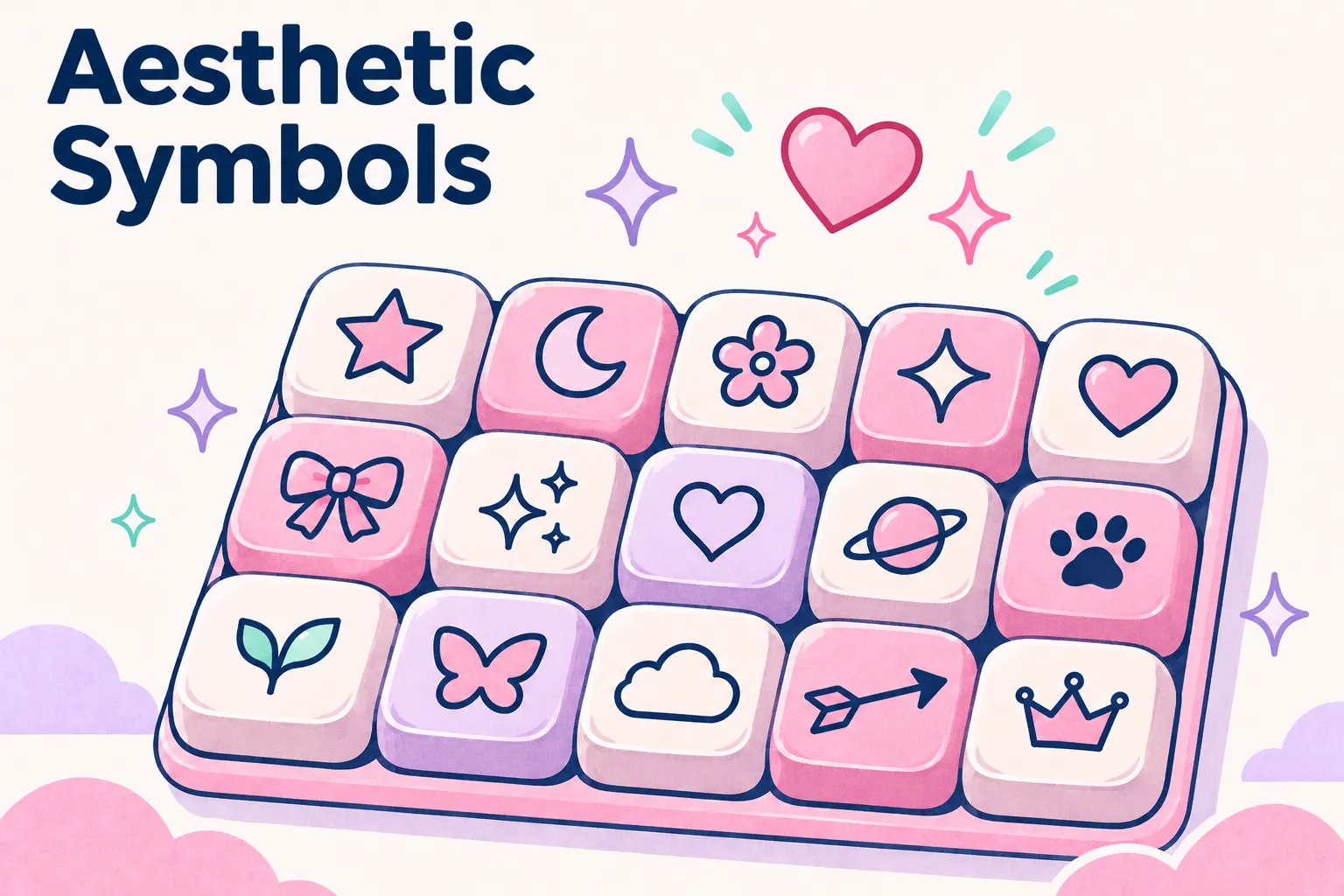
- Stars and sparkles: ✦ ✧ ⋆ ★ ☆ and the tiny ˚ ₊ ⊹ marks that make the classic sparkle trail.
- Hearts: ♡ ♥ ❥ ❣ ღ ❦ ❧, from simple outlines to floral hearts.
- Flowers: ✿ ❀ ❁ ✾ ❃ ❋ ⚘, mostly from the Dingbats block.
- Moon and weather: ☾ ☽ ☁ ☂ ☼ ❄ ❅ ❆ for dreamy or seasonal lines.
- Arrows: ➳ ➵ ↬ ⇢ ➺ ⤷ ↳ ⟶, handy for pointing at a link.
- Lines and brackets: ┊ ┆ ╰ ┈ ‧ ๑ plus 「 」 『 』 【 】 《 》 for framing a word.
- Music: ♪ ♫ ♬ for a song lyric or a playlist line.
Where the little sparkles really come from
Very few of these were designed as decoration. ⋆ is the star operator from maths, and ⊹ is a matrix symbol from the same Mathematical Operators block. ˚ is a spacing ring that linguists use as an accent mark, ₊ is a subscript plus sign, and ‧ is a hyphenation point from dictionaries. Put together, they happen to look like glitter.
Others are borrowed letters. ღ is a letter of the Georgian alphabet, and ๑ is the Thai digit one. The corner brackets 「 」 are quotation marks in Japanese and Chinese, and ┊ comes from the box-drawing characters once used to draw tables on text screens. Shaded blocks and other retro computer marks are on the Y2K symbols page. Knowing this explains why the same symbol can look slightly different from one phone to the next: each one is drawn by whichever font covers that script.
Ready-made combinations, and making more
Below the groups sit ten ready-made combinations, such as ‧₊˚✧, ╰┈➤, ☾ ⋆ ☽, and ─── ⋆⋅☆⋅⋆ ───. Copy one as it is, or press Add to drop it into your selection and build on it. The plain sparkle trail ‧₊˚✧ and its mirror ✧˚₊‧ are the two most useful; put them on either side of a word. To have a name framed in hearts and flowers for you, try the cute font generator.
Load more combinations builds new ones on the spot. Each new combination takes its symbols from a single group and arranges them symmetrically, so you get matched results such as ✿ ⋆ ❀ ⋆ ✿ or ♡‧₊˚❥˚₊‧♡ rather than four random characters in a row. Keep pressing for a fresh batch; anything already on screen is skipped.
Text symbols that turn into emoji
These are mostly text symbols, not emoji. A text symbol such as ✧ or ♡ takes the colour of the words around it, which gives a cleaner look than a row of bright pictures, and it changes with dark mode. Kaomoji faces work the same way, and the kawaii font generator pairs them with cute lettering.
A handful of characters, including ☁, ❄, ☂, and ♥, exist in both forms. Some phones and apps decide to show them as colour emoji, and there is no reliable way to stop that from a pasted string. If one of them suddenly appears as a picture, either accept the colour or swap it for a symbol that only has a text form, such as ♡ instead of ♥.
Arranging aesthetic symbols so they look deliberate
The difference between a bio that looks styled and one that looks cluttered is usually restraint and symmetry, not the choice of symbol. Two or three characters used with care beat ten used at random. To lay out a whole bio, the bio symbol builder adds line symbols and dividers and counts the characters. A few habits make most of the difference.
- Mirror the ends: ‧₊˚✧ name ✧˚₊‧ reads as a frame, while ‧₊˚✧ name ‧₊˚✧ looks unfinished.
- Repeat one symbol down a list: ☾ on every line looks planned, a different symbol per line does not.
- Use tiny marks such as ˚ and ₊ in groups, where they read as sparkle; alone they look like stray dust.
- Stack ┊ down the left of several lines for a border, but only in apps that keep your line breaks.
- Point at a link with ╰┈➤ or ↳ on the line above it, rather than filling the link line itself.
Why a symbol shows as a box, and how to avoid it
An empty box or a question mark means the device viewing your text has no font containing that character. The character is still there, so someone on another phone may see it fine. We left out newer characters that show as boxes on Windows and older Android, but no symbol displays on every device. Before committing to something unusual, check your profile from a second phone or a browser.
Screen readers are the other thing to consider. They often read symbols aloud by name, so a line of six sparkles can become a long string of words before your actual bio. Keep decoration short and put it around your text, not between every word.